
Off-Campus Access
To reach the databases the library subscribes to while you are off campus, you use the university’s VPN connection. Setup is done once; afterwards you only need to connect. This is also the method referred to as “proxy access” in library announcements.
Video guide
Text version of the video
- Download FortiClient VPN from Fortinet’s download page, choosing the version for your operating system.
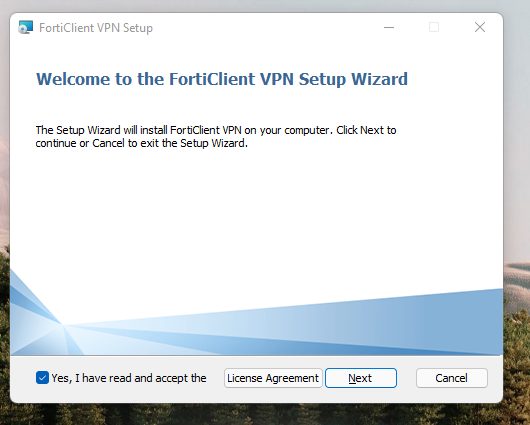
- In the setup wizard, accept the licence agreement and press Next; confirm the installation folder and press Next; start the installation with Install; when it finishes, press Finish.
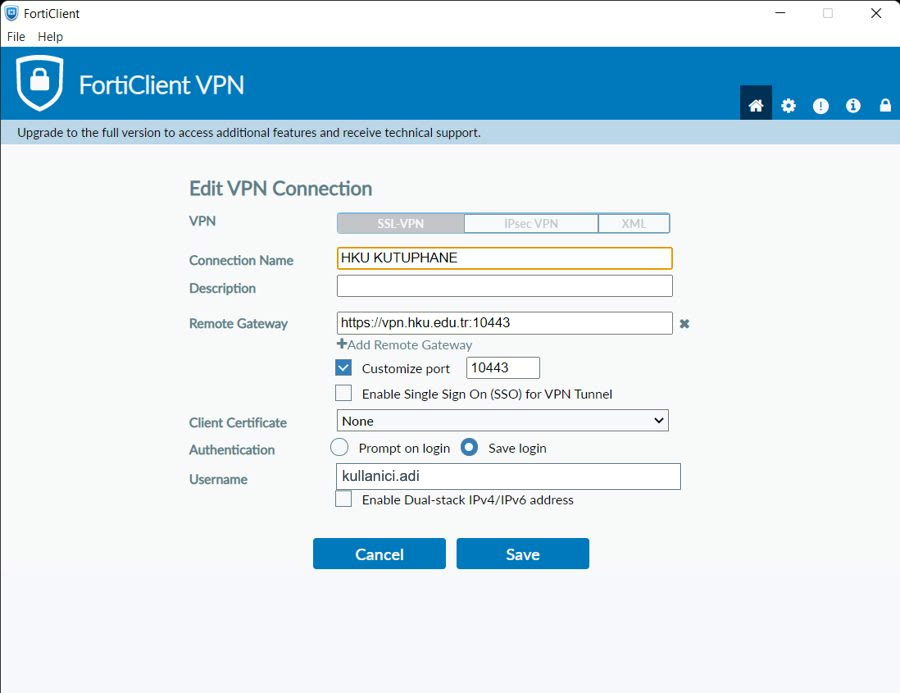
- Open the FortiClient VPN application and click Configure VPN. Set the connection name to HKU KUTUPHANE, the remote gateway to https://vpn.hku.edu.tr and the port to 10443. For the username, students who enrolled in 2025 and 2026 enter their student number; students who enrolled earlier and staff enter their institutional username. Press Save.
- Enter the password you use for internet access on campus and press Connect. Once the connection is established, you can access the databases.
- When you have finished, end the connection with the Disconnect button.
Connection details
| Connection type | SSL-VPN |
|---|---|
| Connection Name | HKU KUTUPHANE |
| Remote Gateway | https://vpn.hku.edu.tr |
| Port (Customize port) | 10443 |
| Username | Students who enrolled in 2025 and 2026: student number Students who enrolled earlier and staff: institutional username (first.last) |
| Password | The password you use for internet access on campus |
Step-by-step setup
1. Download FortiClient VPN
- Windows, macOS, Linux: On Fortinet’s download page, download the version for your operating system from the “FortiClient VPN” section. The free “VPN-only” version is sufficient.
- Phones and tablets: Install the “FortiClient VPN” app from the App Store or Google Play. The connection details are the same; see Connecting on a phone or tablet for details.
2. Install it
- Accept the licence agreement (“Yes, I have read and accept the License Agreement”) and press Next.
- Confirm the installation folder and press Next.
- Start the installation with the Install button.
- When the installation finishes, press Finish.
If you use macOS: After installation, a message asks for permission for the FortiClient VPN configuration manager; press Allow. If macOS also reports that system software from Fortinet has been blocked, allow this software in the Privacy & Security section of System Settings (formerly System Preferences). If you do not allow it, the VPN connection cannot be established. Menu names may vary depending on the macOS version.
3. Set up the connection
- Open the FortiClient VPN application and click Configure VPN.
- Make sure SSL-VPN is selected as the connection type.
- Enter the connection details above: Connection Name, Remote Gateway and Username. Tick the “Customize port” box and enter 10443 as the port. You can also type
:10443at the end of the address in the “Remote Gateway” field. - Press Save.
4. Connect
- Enter your password and press Connect.
- Once connected, you can access the databases as if you were on campus.
- When you have finished, end the connection with the Disconnect button.
Connecting on a phone or tablet
Screen names may vary depending on the app version; the details to enter are the same as in the table above.
- Android: Select New VPN from the bottom bar, enter the connection name, choose SSL VPN as the VPN type and press Create. Enter vpn.hku.edu.tr as the server, 10443 as the port, and your username.
- iPhone and iPad: Approve the “Add VPN Configurations” permission, add a new connection from the VPN tab, and fill in the name, server (vpn.hku.edu.tr), port (10443) and username fields. Your device passcode may be requested during this step.
Resources that do not require a VPN
You can access some platforms without a VPN by registering with your institutional email address. The access route for each resource is given in the “Access” line on the Databases page.
Help
To get support: Email: destek@hku.edu.tr · Portal: open a support request at portal.hku.edu.tr (https://portal.hku.edu.tr/destek/yeni-talep, login required; category: VPN) · HKÜ Mobil: open a support request from the app.
An email sent to destek@hku.edu.tr automatically opens a support request. Links: Send an email or open a support request on the portal.
- For questions about the databases: kutuphane@hku.edu.tr, 444 6 458 ext. 1600
- University telephone: 444 6 458
- Printable guide (PDF, 3 pages, in Turkish)